
If you are currently ranking well with your page title, you should not risk with changing it to improve your rankings. You may often see your current Google rankings go down with such a change. I myself have experienced negative results when I tried to change the title tag for a site which was already ranking well. In fact, Google slammed the site with a -950 penalty.
Your page title is the main entry gate of search engines. Changing the title meta-tag could easily make your Google rankings fluctuate. If you change your title, Google and other search engines will take some time to reflect rankings for new titles. Especially, it would definitely look suspicious in the eyes of Google and other search engines if you have made the changes in the main title and description tags after a long time.
In short, changing the main title of your site, although it’s already ranking well is not a good idea. Instead of changing the page title to try to have improvements on certain keywords, it is better to work on adding content about those keyword phrases on your page, and add links with appropriate anchor text from sites with relevant content. Google always penalized over-optimization. Now it seems as if it frowns normal search engine optimization too. So the best policy is to optimize the website at the time of creation – Do it once, and do it right !
How to add Description and Keyword metatags to Blogger blogs?

Though Blogger is a Google product, blogs hosted on blogger do not have support for meta descriptions and keywords by default. If you have ever tried adding keywords or description meta tags to your Blogger pages, you might have seen that there is no easy way of implementing that. Here is a workaround to make changes to your blogger template in order to add description and keyword metatags of your choice to your blogger top page as well as to your posts.
In the Layout panel of your blog, click on Edit HTML.
Click on Download Full Template and save a backup copy of your template. This will come in handy to undo any changes in case the changes do not work as expected
Look for the following code in the template

Add the following code immediately after the code in step #3.

Replace the http://myurl.blogspot.com/ line with the URL of your blog top page.
Replace the word MY DESCRIPTION with a description for your blog top page.
Replace the word MY KEYWORDS with a list of keywords separated by commas, relevant to your blog top page.
You would need to to follow the steps 4 to 7 – for adding corresponding URL’s, descriptions and keywordsfor for all the individual posts from your blog. For example, if your first article is about your visit to New York, you’ll need to as follows.
Add this code again immediately after the
<b:include data=”blog” name=”all-head-content” /> line:
Replace the http://myurl.blogspot.com/ line with http://myurl.blogspot.com/my_visit to_newyork.html.
Replace the word MY DESCRIPTION with description of your visit to New York.
Replace the word MY KEYWORDS with keywords such new york, business visit, usa visit etc.
Please ensure that all the individual posts have titles and descriptions matching the page content. This will help you from preventing your posts to go in Google Sandbox.
Meta tags introduce your site or blog to search engines. Meta tags communicate with the search engines and give more details about your site. These tags are vital especially if you are running a website or blog to make sure that search engines can easily find your site and index the pages more accurately.
Adding meta tags is very important in order to get more traffic from search engines like Google, Yahoo and others. Adding meta search tags are not the only element for SEO (Search Engine Optimization), yet they still play an important role.
You can find below a detailed description on how to add Meta Tags to your blogger (blogspot) blogs.
Step-1
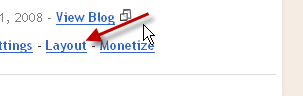
Log into your Blogger account with your username and password. Once you are in your blog's dashboard click the 'layout' button (see the screenshot below)
Step-2
Look under the Layout tab and click on the 'Edit HTML' tab.

Step-3
Make a backup of your template if you haven't already. This is always a wise idea in order to let you easily repair any accidental mistakes that might happen while you edit the HTML code of your blog.
Step-4
Here is the code you have to add in your template.
Step-5
Find the below code (in the top section of your template) and add the above code just after this code.
Step-6
See the below screen shot, after you add the Meta Tag code.

Note:
Fill out and replace what is in the red as shown below.
DESCRIPTION HERE: write your blog description
KEYWORDS HERE: write the relevant keywords to your blog
AUTHOR NAME HERE: write the author's name (your name)
It is important to note that not to fill the description section with keywords. “Do not do this”. This may result in Google and other search engines banning your site.
Now click preview and view your blog. If everything looks correct and there are no errors, save your changes.
Adding meta tags is very important in order to get more traffic from search engines like Google, Yahoo and others. Adding meta search tags are not the only element for SEO (Search Engine Optimization), yet they still play an important role.
You can find below a detailed description on how to add Meta Tags to your blogger (blogspot) blogs.
Step-1
Log into your Blogger account with your username and password. Once you are in your blog's dashboard click the 'layout' button (see the screenshot below)

Step-2
Look under the Layout tab and click on the 'Edit HTML' tab.

Step-3
Make a backup of your template if you haven't already. This is always a wise idea in order to let you easily repair any accidental mistakes that might happen while you edit the HTML code of your blog.
Step-4
Here is the code you have to add in your template.
<meta content='DESCRIPTION HERE' name='description'/>
<meta content='KEYWORDS HERE' name='keywords'/>
<meta content='AUTHOR NAME HERE' name='author'/>
Find the below code (in the top section of your template) and add the above code just after this code.
<b:include data='blog' name='all-head-content'/>
Step-6
See the below screen shot, after you add the Meta Tag code.

Note:
Fill out and replace what is in the red as shown below.
DESCRIPTION HERE: write your blog description
KEYWORDS HERE: write the relevant keywords to your blog
AUTHOR NAME HERE: write the author's name (your name)
It is important to note that not to fill the description section with keywords. “Do not do this”. This may result in Google and other search engines banning your site.
Now click preview and view your blog. If everything looks correct and there are no errors, save your changes.
Meta description tags are very important to optimize your blog in search results. With new Blogger interface we can add a meta description tag to Blogger blog without editing template's HTML. But you can not add meta keywords to your blog using Blogger Settings.

Click on "Edit" link of "Meta tags" section.
Clicks on a "Yes" radio-button to enable search description.
Enter a meaningful meta description into textarea and save changes.

Now you have add a meta description for your blogger blog.
Note:
But if you prefer to add meta tags(meta description, meta keywords, ...) directly to your template(using Edit HTML), read this article:
http://www.bloggertipandtrick.net/2009/03/how-add-meta-tags-to-bloggerblogspot.html
Meta Descriptions, which are HTML attributes that provide concise explanations of the contents of web pages, are commonly used by search engines on search result pages to display preview snippets for a given page. (from http://www.seomoz.org)Go to Settings -> Search preferences.
Click on "Edit" link of "Meta tags" section.
Clicks on a "Yes" radio-button to enable search description.
Enter a meaningful meta description into textarea and save changes.
Now you have add a meta description for your blogger blog.
Note:
But if you prefer to add meta tags(meta description, meta keywords, ...) directly to your template(using Edit HTML), read this article:
http://www.bloggertipandtrick.net/2009/03/how-add-meta-tags-to-bloggerblogspot.html

 Freindly sites
 Latest Blogger Tips
 Follow me Facebook
 Blog Statistics

 Twitter